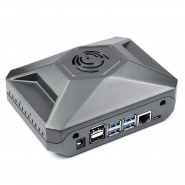
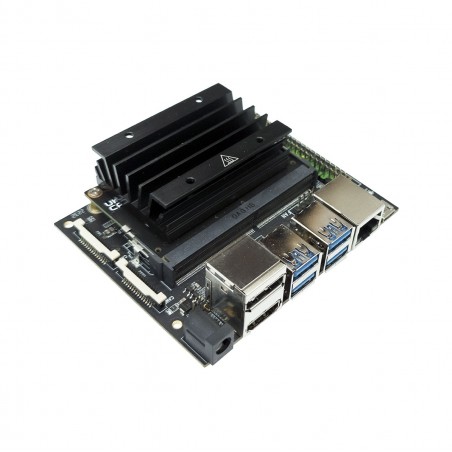

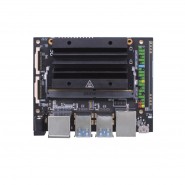
O kit de programador OKdo Nano C100 com tecnologia NVIDIA Jetson Nano Module oferece o desempenho computacional para executar cargas de trabalho de IA modernas em tamanho, potência e custo sem precedentes. Os programadores, alunos e criadores podem agora executar estruturas e modelos de IA para aplicações como classificação de imagens, deteção de objetos, segmentação e processamento de fala.
O kit de desenvolvimento OKdo Nano C100 pode ser alimentado por micro-USB e vem com E/Ss abrangentes, que variam de GPIO a CSI. Isto simplifica para os programadores a ligação de um conjunto diversificado de novos sensores para permitir uma variedade de aplicações de IA. É incrivelmente eficiente em termos energéticos, consumindo apenas 5 watts.
DESCRIÇÃO EM PORTUGUÊS BREVEMENTE DISPONÍVEL
Se tiver alguma dúvida neste produto não hesite em contactar-nos.
*Atenção: as imagens são meramente ilustrativas.
The OKdo Nano C100 Developer Kit powered by NVIDIA Jetson Nano Module delivers the compute performance to run modern AI workloads at unprecedented size, power, and cost. Developers, learners, and makers can now run AI frameworks and models for applications such as image classification, object detection, segmentation, and speech processing.
The OKdo Nano C100 Developer Kit can be powered by micro-USB and comes with extensive I/Os, ranging from GPIO to CSI. This makes it simple for developers to connect a diverse set of new sensors to enable a variety of AI applications. It’s incredibly power-efficient, consuming as little as 5 watts.
This Nano C100 is also supported by NVIDIA JetPack, which includes a board support package (BSP), Linux OS, NVIDIA CUDA, cuDNN, and TensorRT software libraries for deep learning, computer vision, GPU computing, multimedia processing, and much more. The software is even available using an easy-to-flash SD card image, making it fast and easy to get started.
The same JetPack SDK is used across the entire NVIDIA Jetson family of products and is fully compatible with NVIDIA’s world-leading AI platform for training and deploying AI software. This proven software stack reduces complexity and overall effort for developers.
Key Features of the OKdo Nano C100 Developer Kit
Power Options
Extensive I/Os
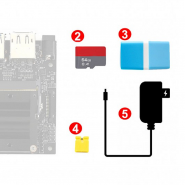
What’s included in the OKdo Nano C100 Developer Kit?
Using NVIDIA SDK Manager and JetPack 4.6.x from a Linux host PC
This tutorial covers flashing a Jetson Nano Developer Kit (board model P3450, built from SOM P3448-0000 and carrier board P3449-0000) using NVIDIA SDK Manager running on a Linux host PC. This is the “full JetPack” method: it installs the bootloader, Linux kernel, root filesystem, CUDA, cuDNN, TensorRT, VisionWorks, OpenCV, and other SDK components — as opposed to just writing a plain SD card image.
Note: The Jetson Nano only supports JetPack 4 (Linux4Tegra / L4T R32.x). JetPack 5 and 6 dropped support for the Nano's Tegra X1 SoC and only target Xavier/Orin modules. Do not attempt to select JetPack 5 or 6 in SDK Manager for this board.
|
Requirement |
Detail |
|
OS |
Native Ubuntu 18.04 x86_64 or 16.04 x86_64 — these are the only host OS versions JetPack 4.x (the Nano's SDK line) supports for flashing. Ubuntu 20.04 and 22.04 hosts are not supported here; SDK Manager reports “No available releases” for those on a JetPack 4.x target. Do not use WSL or a VM for the flashing step; SDK Manager needs direct USB control. |
|
Disk space |
≥ 50 GB free (downloads + image staging) |
|
Account |
Free NVIDIA Developer Program account (developer.nvidia.com) |
|
Cable |
USB-A to Micro-USB data cable (not charge-only) connecting host to the Nano's Micro-USB port |
The dev kit board itself (P3450) with its 5V–4A barrel-jack power supply, or 5V–2A via Micro-USB if J48 jumper is not used
A jumper (or Dupont wire) to short the Force Recovery pins
A microSD card (32 GB+) is still useful even in this flow, since JetPack writes the OS to the SD card by default on the base Nano
The recovery-mode jumper pins differ by carrier board revision, so check the silkscreen on the underside of your board before continuing.
|
Revision |
Recovery Pins |
|
A02 |
Pins 3 (“FC REC”) and 4 (“GND”) on Button Header J40, near the camera header |
|
B01 / Nano 2GB |
Pins 9 (“GND”) and 10 (“FC REC”) on Button Header J50 |
SDK Manager download: https://developer.nvidia.com/sdk-manager#getting-started
SDK Manager documentation: https://docs.nvidia.com/sdk-manager/download-run-sdkm/
On the Ubuntu host, go to the SDK Manager download link above and sign in with your NVIDIA Developer account.
Download the .deb package (e.g. sdkmanager_2.x.x-xxxxx_amd64.deb).
Install it from a terminal:
cd ~/Downloads
sudo apt install ./sdkmanager_<version>_amd64.deb
Launch it:
sdkmanager
SDK Manager ships a Windows installer (.exe), and NVIDIA has recently added a more automated native-Windows flashing flow — but that flow is currently limited to newer hardware (Jetson AGX Orin and AGX Thor, from JetPack 6.2.1 onward) and still relies on WSL2 underneath. The Jetson Nano's SDK line (JetPack 4.x) predates that feature and only supports an Ubuntu 18.04 or 16.04 host — no other host OS version works for flashing this board. On Windows, that means the older, manual WSL2 + USBIPD setup described below is the only route — there is no one-click native path for this board. The table summarizes the practical differences from a native Linux host.
|
Aspect |
Linux Host vs. Windows Host |
|
Setup |
Linux: install the .deb directly. Windows: run the .exe installer, which sets up/relies on a WSL2 Linux distribution (Ubuntu) plus USBIPD-WIN to forward the USB device into WSL. |
|
Extra tools required |
Windows only: WSL2, Windows Terminal (recommended), the usbipd-win tool (winget install dorssel.usbipd-win), and the wslu package inside the WSL distro. |
|
USB passthrough |
Linux: USB works natively. Windows: you must manually bind and attach the Jetson's USB bus ID from an admin PowerShell (usbipd.exe bind / attach) before SDK Manager can see the board, and detach it again afterward. |
|
Recovery mode selection |
Windows/WSL flashing requires choosing “Manual Setup Mode” for the recovery method in SDK Manager's flash dialog, instead of “Automatic.” |
|
Flashing external storage |
Not supported when flashing via WSL — internal storage (the microSD card, for this board) only. |
|
JetPack coverage for older boards |
The newer, more automated native-Windows flashing flow only covers JetPack 6.2.1+ on AGX Orin/AGX Thor — it does not extend to JetPack 4.x or the Nano. For this board, the manual WSL2 method documented here remains the only Windows option. |
|
Recommendation |
For the Jetson Nano specifically, a native Ubuntu 18.04 or 16.04 host remains the simpler, better-tested path (this is the only host OS JetPack 4.x supports). Use Windows/WSL only if a Linux machine genuinely isn't available. |
Warning: Do this with the board powered OFF before connecting anything.
Figure 1. Schematic view of the Force Recovery jumper on the button header (J40 on carrier board A02, J50 on B01/2GB).
Place the jumper across the FC REC / GND pins identified in Section 2 (shown above).
Connect the USB Micro-B cable from the Nano to a USB port on your host PC.
Connect power to the Nano. The board powers on automatically and boots straight into Force Recovery Mode (no display output is expected — this is normal).
On the host, verify detection:
lsusb | grep -i nvidia
Note: You should see a line like “Bus 001 Device 008: ID 0955:7f21 NVIDIA Corp.” If nothing appears, try a different USB cable/port (many Micro-USB cables are charge-only) or re-seat the recovery jumper.
Windows users: On a Windows host, the equivalent check happens inside WSL after binding the device with usbipd.exe — see the Windows Support table above.
With sdkmanager open and the Nano detected, sign in if prompted.
STEP 01 — Development Environment: under System Configuration, select your Host Machine architecture if you also want host-side cross-compile tools (optional). Under Target Hardware, select “Jetson Nano” and choose the correct module: P3448-0000 (original 4GB), P3448-0002 (B01), or P3448-0003 (2GB), matching your board's label.
Select the JetPack version — choose the latest JetPack 4.6.x (L4T R32.7.x) release; this is the final supported line for Jetson Nano.
Accept the license agreements and click Continue.
STEP 02 — Download & Install: SDK Manager downloads the BSP, rootfs, and selected SDK components (CUDA, cuDNN, TensorRT, OpenCV, VisionWorks, Multimedia API, etc.). This can take 30–90+ minutes depending on your connection.
When flashing begins, you'll be asked for OEM Configuration:
Runtime — boots to the Ubuntu “OOBE” setup wizard on first boot (choose this if you want to set username/password/locale on the physical device with a monitor+keyboard attached)
Pre-Config — lets you set username/password now in SDK Manager, so the board boots headless-ready without needing a display
Choose the Storage Device (the onboard microSD card) and click Flash.
Watch the Terminal/log tab in SDK Manager for progress and any errors.
When flashing finishes, SDK Manager reboots the Nano automatically and, if the host detected the board's IP, proceeds to install the remaining SDK components over SSH.
Remove the recovery jumper before the next power cycle (leaving it in place will force recovery mode again).
If you chose Runtime, connect a display/keyboard/mouse and complete Ubuntu's setup wizard.
Once logged in, confirm the JetPack/L4T version:
cat /etc/nv_tegra_release
Confirm CUDA is installed:
nvcc --version
ls /usr/local/ | grep cuda
|
Symptom |
Likely Fix |
|
lsusb shows nothing |
Use a data-capable Micro-USB cable; try another USB port (prefer USB 2.0 port directly on the host, not through a hub); re-check jumper pins for your board revision. |
|
SDK Manager doesn't detect the board / “not in recovery mode” |
Power off, keep the jumper seated, power on again with the cable already connected; some boards need the jumper placed before power is applied, not after. |
|
Flashing hangs or fails partway |
Try a different USB cable or port, disable USB autosuspend on host, or lower to a direct USB 2.0 hub-free connection; retry with a freshly reformatted SD card. |
|
JetPack 5/6 not showing Nano as a target |
Expected — JetPack 5 and 6 do not support the Nano's Tegra X1. Use the latest JetPack 4.6.x release instead. |
NVIDIA SDK Manager — Download page (developer.nvidia.com/sdk-manager)
NVIDIA SDK Manager — Download and Run SDK Manager documentation (docs.nvidia.com/sdk-manager)
NVIDIA SDK Manager — Windows Subsystem for Linux (WSL) documentation (docs.nvidia.com/sdk-manager)
NVIDIA Jetson Linux Developer Guide — Quick Start & Flashing Support (docs.nvidia.com/jetson)
NVIDIA Developer Forums — “How to Put NVIDIA Jetson NANO in Force Recovery Mode?”
JetsonHacks — “NVIDIA SDK Manager for Jetson - JetPack 4.2”
balena-os/jetson-flash — Jetson Nano recovery-pin documentation (GitHub)

Produtos Associados
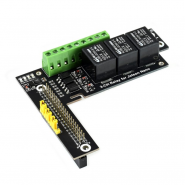
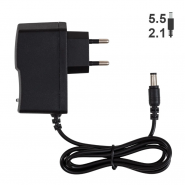
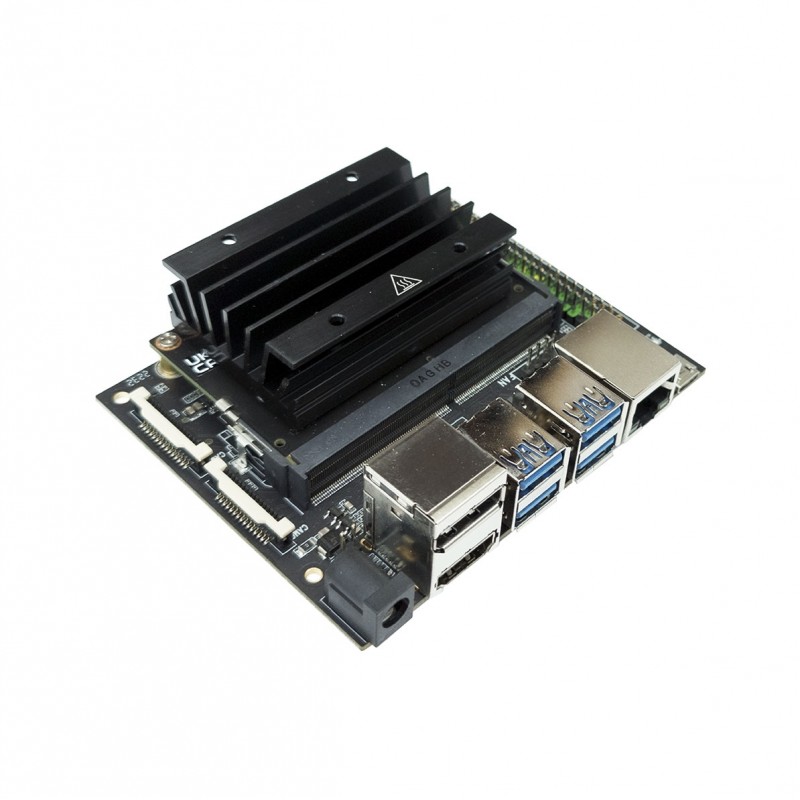
O kit de programador OKdo Nano C100 com tecnologia NVIDIA Jetson Nano Module oferece o desempenho computacional para executar cargas de trabalho de IA modernas em tamanho, potência e custo sem precedentes. Os programadores, alunos e criadores podem agora executar estruturas e modelos de IA para aplicações como classificação de imagens, deteção de objetos, segmentação e processamento de fala.
O kit de desenvolvimento OKdo Nano C100 pode ser alimentado por micro-USB e vem com E/Ss abrangentes, que variam de GPIO a CSI. Isto simplifica para os programadores a ligação de um conjunto diversificado de novos sensores para permitir uma variedade de aplicações de IA. É incrivelmente eficiente em termos energéticos, consumindo apenas 5 watts.